For businesses
Your Media tab: photos, video and music
Cover photos that work, photo order, YouTube and promo videos — and for bands, music links and the shop.
Part 1
Your cover photo does the heavy lifting
Part 1
Your cover photo does the heavy lifting
The first photo in your Media tab is the cover — it's what shows on your card everywhere on the network, in search results and when someone shares your page. Lead with your best exterior or signature shot, well lit and in focus.
Stand across the street in daylight for exteriors; for food and drink, shoot near a window.
Part 2
Order tells the story
Part 2
Order tells the story
After the cover, order your photos the way a first-time visitor experiences your place: the approach, the entrance, the room, the details. Add, reorder and remove photos any time — everything saves automatically. Six to ten good photos beat thirty average ones.
Part 3
What makes a good shot
Part 3
What makes a good shot
Use real photos of your place, not stock images. Keep them bright, level and uncluttered. Show people where it helps — a full dining room feels more inviting than an empty one. Skip heavy filters and text overlays; they look like ads.
- 1Bright and levelDaylight beats flash; hold the phone straight.
- 2Real, not stockVisitors can tell, and trust drops.
- 3No text overlaysSave announcements for events and posts.
Part 4
Video: YouTube and promo clips
Part 4
Video: YouTube and promo clips
Add a YouTube link and it appears on your page as a playable video — a tour, a reel, a clip from a local station. One good video is enough; keep it under two minutes and make sure the first five seconds show your place, not a logo.
Bands
For bands: music and your shop
Bands
For bands: music and your shop
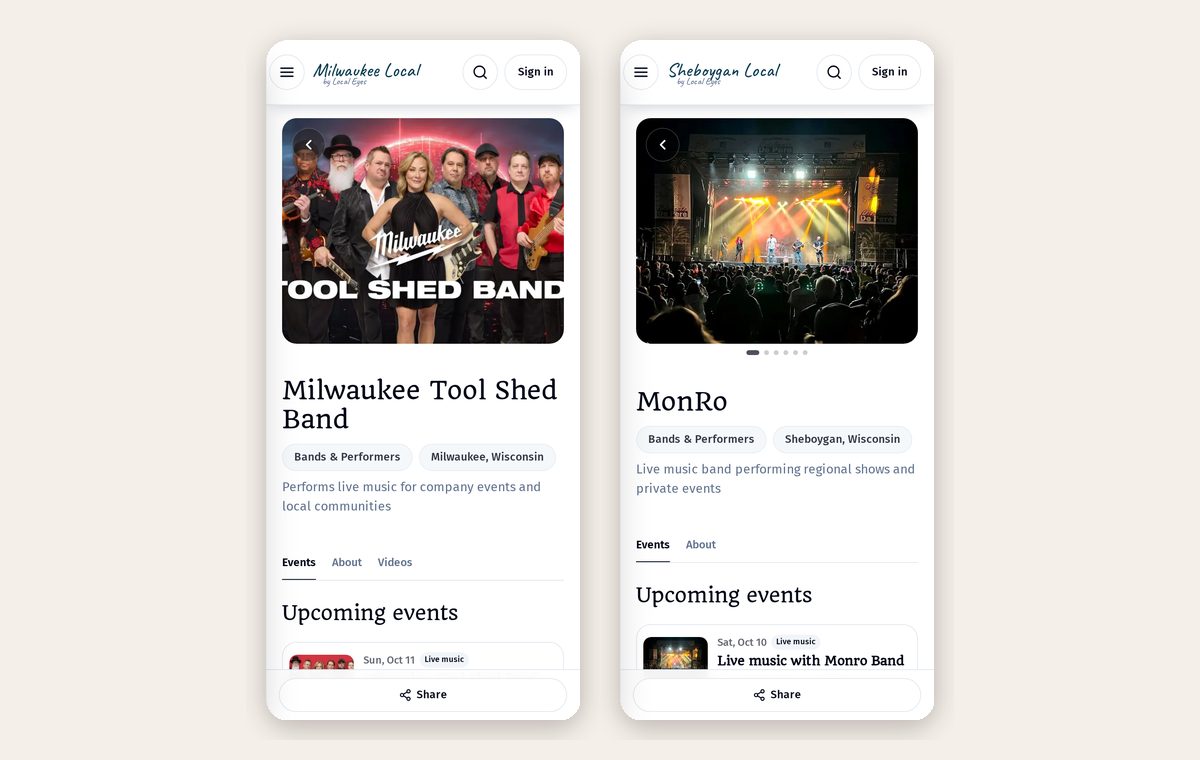
Band listings get two extra sections in Media. Connect a Bandcamp, Spotify or SoundCloud link and a player appears on your page so visitors can listen right there. Add merch items — from Bandcamp in one import, or one by one from any store — and they show in your Shop tab with a photo, price and buy link. The guide Local Eyes and a website for your band covers the full band setup.